Showing posts with label Mobile. Show all posts

Friday, 25 October 2013

Earn Money With Android Mobile Lock Screen


Locks are many but the key to earn money is MAdLock.

MAdLock is an Android lock screen application which displays beautiful ads on the Lock screen of a Smartphone as well as you can earn up-to Rs.300 per month by installing and using it. User will earn by just viewing the ads.


You can redeem money in the following ways
1 - Transfer to your Bank Account
2 - Mobile Prepaid Top Up
3 - Mobile Bill Payment
4 - Gift Voucher


Feature List
1. Advertise based on interest areas.
2. Creative Ad Wallpapers for Lock screen. 
3. Engage with your favourite ads. 
4. Get paid as you unlock. 
5. Participate in Lucky draw, discount coupons, poll, and surveys and get rewarded. 
6. Refer your friend to get bonus. 
7. Redeem and spend your Money in the form you wish: mobile balance, bank transfer, donations to charitable institutions.

To Install MADLock App on your Mobile just follow simple steps given below :-

Step 1 :- Just go to Google Play Store -> Enter MAd Lock in the Search Box -> Click on the MAd Lock icon and select Install. OR Click Here to Download it from Play Store. When installation get completed you will get two icon.
1:- MADLock
2 :- MADLock Manager As show in Image below in Red Square.


Step 2 :- Open MADLock Manager and Click on Sign Up.

Step 3 :- Fill all the Boxes

Name :- Enter your Name
Email ID:- Enter your Email ID
Password:- Choose a Password for MADLock Account
Date of Birth:- Your Date of Birth
Gender:- Choose your Gender.
Pin:- Enter any Six digit Code.
Referral Code:- 928KMJ (NOTE:- By using this Referral Code will Give you Rs20 Instantly in your MADLock account.)

Step 4 :- Now GoTo Interest Menu in MADLock Manager.


Step 5 :- Update your Interest area, so you can get you ads related to your interest by choosing cotagories and Mark your interested filed in every section and click on Update.


Step 6:- Now Close MADLock Manager and Open MADLock to activate MADLock locker on your Smartphone.

Left your mobile DATA connection on for few minutes so that MADLock can get some ads to show you on your Smartphone. To Earn money you have to engage with ads shown on your mobile Lock Screen to Engage with ads you have to Drag the lock on Simile below the lock.


Enjoy Earning

Your Earning will Update on Next day. You can see your Earning in Money section in MADLock Manager.  
For any help comment or you can Goto Help menu in MADLock manager

Share with Friends


Sunday, 16 December 2012

How To Use mobile as a Wireless Speaker on PC

Hey do you Want to use your Android mobile as a Wireless Speaker on PC. If Yes than you are on right place. Its very simple and Nice trick you have to just follow some Steps.

Step 1:- Download and install SoundWire on your PC. Click here to Download.

Step 2:- Now Download SoundWire on your Android Device from Play Store. Click Here.
Step 3:- Switch on your Bluetooth and WiFi on your Mobile as well as on PC and Pair both.

Step 4:- Open SoundWire on PC and on Your Android Device.

Step 5:- Enter Server Address on your Android as you will get on SoudWire on PC.

Step 6:- Tap on SoundWire Icon on your Android Device and See Status on PC as Connected.


Enjoy wireless Speaker
Don't forget to Share it. 

Tuesday, 23 October 2012

How to Upgrade Nokia Firmware or Format Nokia Dead Mobile

Hey Do you Want to Format your Nokia Mobile due to any Problem like your Mobile got Dead or want to upgrade it to Latest Version than Follow these Tricks. These tricks are for all BB5 Nokia Mobiles.


  • Always backup user data from phone( If Not Dead )
  • Phone battery should be charged
  • You may lose phone warranty by flashing the phone
  • Uninstall Nokia PC suit or OVI Suit.

Things You Needed


Steps to do

Install Nokia Phoenix Service Software and Navifirm.

Open Navifirm and Download Firmware of Your Mobile in any Folder.

Open Nokia Phoenix Service Software as Administrator  (Windows Vista, 7: right click -> run as administrator; XP: login with administrator privileges. I will Prefer to Use Windows XP) and Go to Tool > Option > Product Location click on Add and Browse for Folder of your Mobile Firmware in Second and Third Box and Click on Apply.


Now in Connection Select No connection (No other Mobile or Extra USB device should be connected to PC).


Switch off your Mobile if it is Not Dead and Connect mobile to PC if any Device connected than Ok otherwise Press Switch On button till Rom get connected and Select that in Connections.

Now Go to File > Open Product and Select your Product and hit OK.


Now Go to Flashing > Firmware Update.


A New window will Open. Now in Product code Select your Mobile Software Using its Product code which you have used to Download your Mobile Firmware.
After that Check Dead Phone USB Flashing and Click on Refurbish Button.

Wait till you get a message that Firmware Updated Successfully. 


How to Download Nokia Mobile Firmware Using Navifirm

Hey Do you want to Know how to Download Nokia Mobile Firmware Using Navifirm than follow these Simple Steps.

To Download Navifirm click here.

Step 1:- Open Navifirm.

Step 2:- Select your Mobile using Model or Product type(To get Product type Dial *#0000# on your Mobile)

Step 3:- Now in Release Select Version of your Firmware which you have to Download.

Step 4:- Now in Variants Select your Mobile firmware using its Code (You will get your Mobile code behind your mobile after removing Battery. You will also get Product code here.)

Step 5:- Now in File Mark all Files and Download them.


Sunday, 14 October 2012

How to Upgrade Samsung Android Mobile Firmware or Format Samsung Android Mobile

Hey Guys do you if your Samsung Android Mobile is Dead or want to Upgrade your Samsung Android Mobile Firmware or Want to format it due to any other problem then you are at right place.


To do this you have to follow simple Process. Its very easy to format Samsung Android Mobile.

Step 1:- Download ODIN. To download click here

Step 2:- Download Samsung Check Fus Downloader. To download click Here

Step 3:- Uninstall Samsung Kies if you have installed it.

Step 4:- Download USB Driver. To download click Here and choose your Mobile after downloading install it.

Step 5:- Extract and Open Samsung Check Fus Downloader.

Step 6:- Now wait till it load all Information you can see it in Status bar below.

Step 7:- Now click on Drop down menu below Choose a Firmware and Choose Android.

Step 8:- After that in second Drop down menu choose your Mobile Model.

Step 9:- After Choosing Model Choose a Region of your Firmware(If you not got your region in that you can search your firmware on Google and download it).

Step 10:- After Choosing click on Check Firmware.

Step 11:- When check completed you will get a option for Download.

Step 12:- Click on Download wait for completing Download.

Step 13:- Open ODIN.

Step 14:- Now press Volume Down button + Home + Power Button to open your Phone in ODIN mode. Now press Volume UP button.


Step 15:- Connect your Phone to PC using USB ODIN will detect your Phone

Step 16:-Click on PDA in ODIN on PC and browse for firmware file you have downloaded.


Step 17:- Now click on Start and see the Progress on Installation on you Mobile and PC screen. Your Phone will automatically Rebooted. Do not interrupt it during this Process.

Enjoy 

Thursday, 4 October 2012

How to connect Internet on Computer using Android Mobile (Tethering)

Hey Guys do you want to connect Internet on your Desktop or Laptop using Android Mobiles Via USB or Wifi. Just follow these Simple steps and get connect to Internet on your PC using Android. Commonly known as Tethering.


Step 1:- Connect Internet on your Android Mobile( Using your Mobile Packet Data or Wifi ).

Step 2:- Connect your Android mobile to PC using Data Cable.

Step 3:- Open Setting of your Android and select Wireless and network.

Step 4:- Select Tethering and Portable hotspot.

Step 5:- Check USB tethering(To connect using USB Need to Install Samsung USB Driver) and Portable Wi-Fi hotspot(To use Mobile as WiFi Hub).

Enjoy you are Now connected to Internet.

Don't Forgot to comment.

Wednesday, 3 October 2012

Get 1$ for Free to call Anywhere in the World

GlobalTalk is a free calling app to make calls all over the world via your mobile's internet. There are plenty of such apps but they either require the call reciever to have the app as well or they charge you money for calling! With this app you get a 1$ free balance after installation. This balance can be used by you to call anyone anywhere in the world! You can also see the calling rates in the app. As for calling in India this 1$ balance will mean about 48min of Free Talktime to any phone. The advantage is that the person you are calling need not have this app installed. The call is made on his/her mobile device directly which means they don't even need internet connection. Its only you (the person calling) who needs a internet connection.

Steps to get the Free Credit:

  • Download & Install the app from links below:
    • iPhone – Get the app from App Store from here.
    • Android –  from Android Market from here
  • Open the app, you will get $1 balance as a Free gift after Starting first time.
  • Use the Free balance($1) to call anywhere in the World. 


As a leading telecommunications company in United States, Seawolf Technologies is dedicated to providing excellent global phone call service for all smart phone users with reasonable pricing plans.
With $1 balance as a free gift to start, you can use our GlobalTalk App to make call worldwide in a very simple way.

How to Make Call Using Globaltalk

If you have any problem in making call using GlobalTalk see this I think it will help

To Make a Call Using Global Talk follow Simple Steps Given Below

If you don't know what is global talk Visit here to know

Step 1:- Turn On your Mobile Internet and open GlobalTalk (It will Register itself on Internet)
Step 2:- Go to Tab More and Select Dial Up Habit.
Step 3:- Now Click on Change and choose your Country.
Step 4:- Simply type the Number on which you have to make call and press call. 

Tuesday, 18 September 2012

How to use Facebook without Internet

Hey Now you can Use Facebook without Internet. Fonetwish is an USSD based interactive service which brings the power of internet to every mobile phone. Fonetwish provides access to facebook from any mobile phone without the requirement of any data(internet) connection. Just dial *325# from your mobile phone and get started, fonetwish provides all the major features of facebook like status update, wall post, friend requests, notifications along with the above fonetwish provides push notifications an innovative new feature by which your facebook notifications are pushed into your mobile handset automatically as and when they are generated. So, the next time when you want to update your status or post on a friends’ wall no need to worry about overpriced SMS’s or a Data Connection. Just dial *325# from your mobile phone and get started.


1) What is Facebook by Fonetwish?
Facebook by Fonetwish a first in the world service that allows users to access their Facebook accounts without going on the Internet. 

2) How do I use Facebook by Fonetwish?
Facebook by Fonetwish can be used by dialing *325# from their mobile phone. Once dialed, a menu will appear on your screen. Enter your Facebook username and password to log on!

3) Is it free? If not, how much does it cost?
Updating your status is completely free, but using other features, such as posting on a wall, checking notifications, and adding friends is not free. Facebook by Fonetwish is a subscription service that charges Rs. 1/ day for unlimited usage.

4) How do I subscribe? How do I unsubscribe?
Fonetwish will automatically ask you for subscriptions when you access the premium features of the service. We will send you an SMS with the subscription details. To unsubscribe, just dial *325*22# from your mobile.

5) Does it have roaming charges? 
No, Facebook by Fonetwish does not have any additional roaming charges. The service is available anywhere, anytime!

6) Does it work on all phones? If not, which ones?
We designed the service to work on all types of mobile phones, from a simple Nokia 3100 to smartphones like a Blackberry and an IPhone.

7) Is there a character limit for using the service? 
Yes, the character limit is 140 characters.

8) Can I use the service on all operators anywhere in the world? 
Currently, Facebook by Fonetwish works with Airtel, Aircel, Idea, Videocon, Loop Mobile and Tata Docomo in India.

9) Where do I report problems and give feedback? 
We would love to hear from you, just drop a mail to Facebook by Fonetwish at feedback@fonetwish.com


Enjoy it Don't forget to comment

Saturday, 25 August 2012

How to Get Free Recharge by Sending Free Message or Referring Other

Hey, Do you want to Earn Free Recharge online by Sending Free Message and referring other than you Have Best Choice is Ultoo.


Ultoo.com redefining the way of messaging. For all those who are Sending Free Message from Internet, Here is the best one from which you will be benefited also for sending each Message. It will pay you for your each activity. ULTOO is a brand new SMS sending website with a excellent experience which pays you for each and ever message send by you and you can use that credit to get a free mobile recharge.
The messages are send at the lightning fast speed without any advertisement attached to it. The other ways to earn through ULTOO is by referring anyone to Ultoo using your referring link you get payed Rs 1 for every People referred. 

What are the various activities which can help me to get a recharge?


For successful Registration Rs 2.
For email verification Rs 1(first time only).
For sending sms 2 paisa/sms.
For inviting friends(through SMS)Rs 1.
For inviting friends(through email)Rs 1.

Note : The earnings for an Invite will get credited only when your friends or the receiver of the invite will register, login and send an SMS from ULtoo.com


Sunday, 5 August 2012

How to Remote Control uTorrent From Your Mobile Phone or Other Computer


You’re a geek on the go and it’s important to keep tabs on your torrents when you’re away from home. Today we take a peak at how you can monitor, manage, and even start your torrent downloads when you’re away from your computer.
Whether you want to keep tabs on your torrents while you’re in class, at work, or just lounging on the couch, we’re going to show you how to monitor and manage your torrents from your Android phone, iPhone, and other mobile devices as well as from a remote computer using a standard web browser.

What You’ll Need

For this tutorial you’ll need a handful of things, all of which you likely have on hand and ready to go. Before we continue check off the following items:
  • A copy of uTorrent installed (Transmission fans can follow along, many of the steps and apps are roughly analogous)
  • A way to open a port in your firewall (such as adding a rule to your home router; we’ll delve into this more later)
  • A smartphone (both Android and iPhone are great picks with Android edging out the iPhone)
This is a flexible tutorial. While we’re going to go into detail outlining how to work with uTorrent and Android you can just as easily adapt the steps to any torrent app with a web interface and/or mobile apps.

Setting up uTorrent for Remote Access with uTorrent Remote

There are two ways to set up uTorrent for remote access—uTorrent Remote and uTorrent Web GUI. The option you choose is dependent largely on which device you are going to use to access the remote interface and whether or not you use a proxy service to encrypt your BitTorrent activity.
The absolute easiest way to turn on remote access for uTorrent is to take advantage of the uTorrent Remote. Introduced last year the uTorrent Remote service connects your uTorrent client to uTorrent.com so that you can log directly into your client via the uTorrent website.
The upside to this configuration is that it’s dead simple to configure, it works on any smartphone with a modern web browser, and the UI is clean and easy to use. Since Apple has a direct prohibition against BitTorrent control apps in the App Store this is the only way for iPhone users to get access to a clean mobile client on an unjailbroken phone. The downside to this configuration is that using a proxy to route, encrypt, and hide your BitTorrent traffic breaks the uTorrent Remote system and you’ll get a “Not Accessible” error and countdown loop that goes on forever.
If you’re using an iOS device and/or another smartphone that doesn’t have a good uTorrent remote control app (and you’re not concerned about using a proxy) then it’s time to fire up your uTorrent client and complete the simple configuration.
Run uTorrent, navigate to Preferences (or hit CTRL+P) as seen in the screenshot above. Once you’re in the Preferences menu navigate to Remote.
Within the remote menu you’ll see a checkbox, Enable uTorrent Remote Access. Check that box and then, in the Computer and Password box below, create a unique computer name and password.
Click apply in the corner and wait until the Status changes to “Status: Accessible”. At this point you’re connected to the uTorrent remote system and ready to login using either a desktop or mobile browser. This technique does not require any firewall configuration and should work perfectly right out of the box.
To connect to your uTorrent client from afar using the uTorrent Remote system simply point your desktop or mobile browser to https://remote.utorrent.com/. On your first visit it will prompt you to create an account (you want to click “I have an account” since we just created one in the uTorrent client), then—as seen in the middle of the screenshot above—you’ll be greeted with a simple login screen. Login using the computer name and password you created in the previous step. If you’re using a mobile browser you get an iPhone’esque looking interface as seen in the last panel. If you log in from a desktop browser you get a view similar (but still simplified) to the uTorrent interface you’d see at home.

Setting up uTorrent for Remote Access with uTorrent WebUI

While the previous technique, using uTorrent Remote, is great for those who doesn’t secure their BitTorrent activity with a proxy and for iPhone users who don’t have access to an App Store approved uTorrent application, the lack of proxy support and the minimal feature set is a real deal killer for power users. Here’s where enabling the old Web UI interface comes in handy. By enabling the old interface you can use mobile apps that tap into it and mobile services that redirect you to a clean mobile interface.
Before we start looking at apps let’s turn on the Web UI. Navigate to the preferences panel again (CTRL+P). This time head down the Advanced menu and expand it. Within the Advanced menu you’ll see the Web UI entry. Click on that. As seen in the screenshot above you’ll want to check Enable Web UI, enter a username, a password, leave the guest account unchecked, and then check Alternative listening port and enter an open port number you’d like to use. Save your changes and return to the main uTorrent interface. Now is a great time, if you’re behind a software or hardware firewall, to set up a port forwarding rule for the Web UI.
At this point in the tutorial you’ve turned on the Web UI and opened the port, which means you can point any web browser at your home computer’s public IP address and log in, via the web, to your uTorrent client. So for example, if your IP address was 123.456.789.123 and the port number you chose was 9292 you could type in http://123.456.789.123:9292/gui/ to visit your client remotely. That’s great for desktops and tablets browsers but not so great for small screens like those on smartphones. To fully take advantage of the Web GUI you need an app to tap into the interface and streamline it for the mobile experience.
iOS users are out of luck unless they do one of two things. Armed with a jailbroken phone you can grab the uTorrent Remote app from the Cydia App Store. Barring jailbreaing, the same people behind the Cydia-only uTorrent app also have a proxy service called Morrent Mobile. If you’re comfortable using a third party service to proxy into your home network it’s a functional mobile wrapper for the uTorrent Web UI.
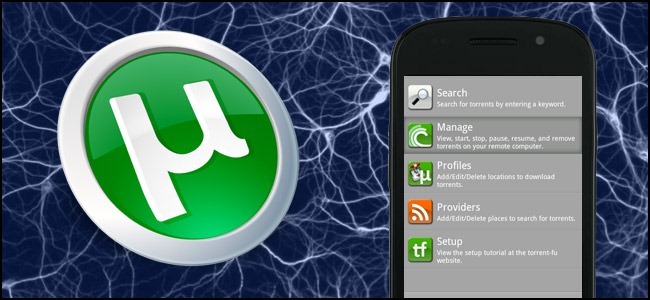
Android users, on the other hand, can skip the whole proxy experience and log directly into their uTorrent client using an Android app. One of the more popular apps uTorrent apps on the Android Market is Torrent-Fu.
Torrent-Fu is packed with features including search tools, RSS feeds for new torrents, and profiles for multiple torrent clients. After installing the application, run it for the first time and follow the Profile Required prompt that pops up by pressing “Go to Profiles”. Click Add Profile and plug in all your information from the previous Web UI configuration (public IP address, port number, and login/password). Save the new profile and then, from the main screen, click on Manage to select your home uTorrent client. From within the Manage menu you’ll be able to view torrent details, start, force start, pause, resume, remove, and remove and delete data. You can also filter by variables like seeding, paused, downloaded, completed, and flags.
In addition to manipulating your existing torrents you can also add torrents via search; Torrent-Fu searches ISOHunt, MiniNova, PirateBay, and KickassTorrents, as well as integrates with What.cd accounts.

Whether you’re keeping tabs on your torrents from your Android phone, your iPad, or sneaking a peek or two at work, you’re now ready to remotely monitor and manage your torrent experience.

Sunday, 24 June 2012

Youtube Downloader For Mobile


YouTube Downloader is software that allows you to download videos from YouTube, Facebook, Google Video, Yahoo Video, and many others and convert them to other video formats.
The program is easy to use, just specify the URL for the video you want to download and click the Ok button!
It also allows you to convert downloaded videos for Ipod, Iphone, PSP, Cell Phone, Windows Media, XVid and MP3.
You can use YouTube Downloader to download the videos of your choice from home, at the office or in school.
Download YouTube Downloader now and get started downloading your favorite videos from YouTube and many other sites.

Thursday, 21 June 2012

How To Control PC from Mobile

Hey Now you can Control your PC from mobile 


Phone Remote Control turns your Bluetooth enabled mobile phone into a universal controller for Window.
See your Power Point slides directly in the phone, browse/play the songs in ITune and Media player and much more...
Phone Remote Control is a true universal remote control that lets the user adds or modify the controlled programs. Customize simple keymaps or for full control over the UI write your own Java and VB scripts.
Phone Remote Control supports the following programs: Support for additional programs can easily be added with simple keymaps, VB or Java scripts (Script Guide).


ITunes

------
· Shows song name, artist & track time and UI objects
· Browse playlists, songs, artist, album and composers
· Search for songs
· Rank tracks
· Toggle shuffle
· Repeat track or library
· Play/pause, rewind, fast forward, change volume, previous/next track
· Mute


PowerPoint

----------
· Shows next slide and slide notes
· Shows actual slides
· Play/stop presentation, previous/next slide
· Load recently used file
· Browse/Goto all/any slide
· Presentation time
· Scroll slide notes
· Vibrate when time expires


WinAMP

------
· Shows song name, artist & track time and UI objects
· Search for song and artists
· Play/pause, rewind, fast forward, change volume, previous/next track
· Toggle shuffle mode
· Change volume
· UI objects
· Toggle repeat mode


Windows Media Player

--------------------
· Shows song name, artist & track time and UI objects
· Browse playlists and artists
· Rank tracks
· Toggle shuffle
· Repeat track or library
· Play/pause, rewind, fast forward, change volume, previous/next track
· Mute


Mouse mode

----------
· Full support for controlling the PC mouse
· See the computer desktop on the phone
· Zoom in and out of the desktop
· B&W colors for faster response time
· Enter text


File Browser

------------
· Allows launching of files


System

------
· Change system volume
· Start screensaver
· Lock workstation
· Shutdown Windows
· Start screensaver


Just Download Phone Remote Control (previously Bluetooth Remote Control)


Install it on your PC and on you Mobile

Connect your PC and Mobile Via Bluetooth or Wifi and Control your PC through Mobile


To Download Click Here

Tuesday, 19 June 2012

How To Use Mobile Camera As A Webcam on Your PC


In these days everyone are using mobiles phone with high features, Bluetooth and Camera is one of them which are commonly provided in the mobiles. In this trick I am going to tell you “How to use your Mobile camera as a webcam with your PC during the video chat. 
So if you don’t have a webcam and does not want to waste money on buying a new one then this trick is the best solution for you. For this trick you need to have the Camera Mobile.

For this mobile trick you have to download an application know as “ Smart cam” which one is free of cost. Below is the  link to download this application for free


Work on Symbian S60 2nd Edition, Symbian S60 3rd Edition, Java, Windows Mobile, Android ( Not confirm on all Mobiles )


Download Your Operating System Software 

 Windows [EXE]


Downloads Available for ( Not Confirm for all Mobiles )


Android [APK]

Problem in Downloading click here to know how to Download


Various steps to perform this mobile trick:

Step1. Download this application and then you have to install it in your mobile phone as well as in your computer.
(Note:: Install the Windows file in the computer and Mobile file in the mobile.)
Step2. After this you have to connect your mobile phone and computer using Bluetooth.
Step3. That’s it, Now you can use your mobile phone camera as a webcam.

How To Download Paid Applications For Free In Android


As we all know that Android is the most wanted operating system in the market right now. Many of us are using Android operating system. So we all know that major applications in Android market are paid not free. So I have a way to download these paid applications for free. If you also want to use these applications for free then you have to do the following setting in your Android mobile.


First you have to Go To>>>”


These setting makes your mobile able to download application from outsource.
Now in this mobile tricks I am going to give you some important websites those provides paid application for free.

Step2: Now you have to open the Android Browser in your mobile.

Visit one of the following site because they provides you these applications for free.