Showing posts with label Gmail. Show all posts

Friday, 28 June 2013

Access Your Gmail Account Without Internet Connection

Gmail Offline a free Chrome web app, which allows you to access your Gmail account without any Internet connection. With the helps of this app you can take your emails on the go and check anywhere in your laptop without any internet connection. The app allows you to read, respond to, and search mail from anywhere. Right now the plugin is only available for Google Chrome browser, so to use it you have to install Google chrome browser on your desktop.

How to Access Gmail Without Any Internet Connection

Step 1. Install Google Chrome Browser to use the Gmail Offline Plugin.
Step 2. After the Google Chrome Browser installation go to the Chrome Webstore and Download the Gmail Offline App from this link

Step 3. Once Installed, you can see the Offline Gmail App icon on your Google Chrome apps page. Launch the app to access Gmail account offline.
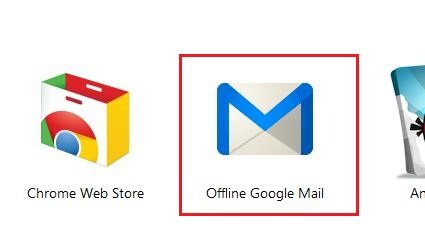
Step 4. Now it will ask you to allow offline mail storage. If you approve, your inbox data will be stored on the computer you’re using. (NOTE - Don,t Approve it on a public computer or Cyber Cafe) If you allow, Offline Gmail will launch and start backing up your inbox.

Now next time you are offline, you can compose and send emails, archive items, read up on emails, and anything else you’d normally do. Once you reconnect to the Internet, the messages you composed offline will be sent.
To uninstall the app or delete your offline inbox from the computer you installed it on. Go to Chrome Browser address and type chrome://settings/cookies and press Enter. Now search for the “mail.google.com.” and click the “X” icon to delete it.

Tuesday, 11 June 2013

How to Change Your Gmail Email Address

People changes their email address for lots of reasons, some didn’t like the name they first created for the email address and some decided they need a more professional email address. And some want to change it because they are married and want a new address to match their new name. So today in this guide we let you know how you can change your Gmail address without losing any incoming email from your last account. Remember currently Gmail didn’t provide any option to change the Gmail address, but with this simple trick you can create you new email address and receive all the incoming mails from your old email ID to new one. So this way you can change the Gmail address easily without losing your friends and contacts. The trick is simple and it will take only 10 to 20 minutes to complete the process. Follow the below mention steps one by one to complete the process successfully.

Steps to Change Gmail Address

Suppose your old email id is abcd@gmail.com and you want to change that email id to newabcd@gmail.com. First thing you have to do is create a new email ID from the Gmail sign up page. Go to Gmail Sign up page here and create your new account with the new email ID newabcd@gmail.com.


Once you created the new Gmail account, now it turn to sync all your old gmial account abcd@gmail.com contacts to new one. Here is the complete guide which helps you to sync contacts between Gmail accounts. Now all your old email contacts are restored on your new Gmail account. After that go to your new GMail account and send a mail to all your friends that you changes your email ID and this one is your new email ID.
Or you can use the forward option on your old gmail account abcd@gmail.com to forward all new incoming mail to your new gmail account ID newabcd@gmail.com. To do this go to your old GMail account setting page and Forward all your new incoming emails to the new address newabcd@gmail.com. Read this guide how to forward all your incoming messages automatically. With this way you can’t miss anything as you make the switch between gmail accounts.

That’s it now all you old account emails are forwarded to your new Gmail account and all your contacts are also imported to your new Gmail account.

Thursday, 7 June 2012

How to send SMS to anyone from Gmail

There are many features of Gmail
Did you know that,you can easily send SMS to your Friends or relative with your GmailAccount.
Just follow the below steps to activate this awesome feature. 


  • Sigin to your Gmail Account.
  • Now click on the "gear" icon and choose "Settings"


  • Click on the "Lab" option
  • Now when you will be in the "Labs" option,then there you will find "Search" box.
  • Now type "SMS" in the search box and hit enter
  • Now you will find 2 lab features:-
  1. SMS (text messaging) in Chat
  2. SMS in chat Gadget
  • Just enable both of the features.


  • After enabling these features reload your account or you can also sign out and resign.
  • Now you will see "Chat and SMS" option in the Chat bar
  • To send SMS,just type the SMS and click on the "Send SMS"


Please note: In a day you can send only 48 SMS.Only some of Network Providers are available,check the list of all supported network providers here ( Wait For 5 sec to Skip ad )

Post your comments